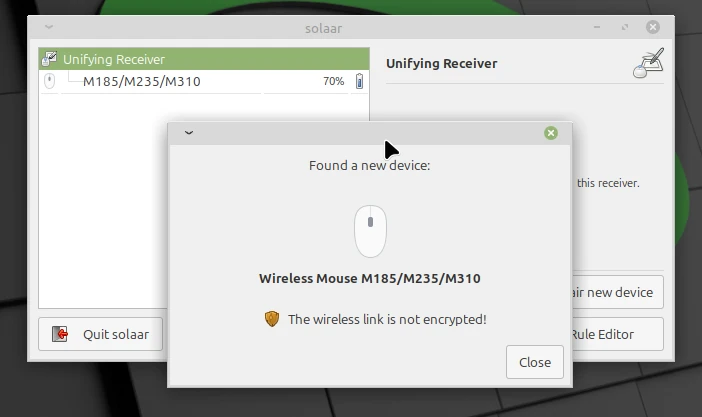
What is Solaar
Solaar is a graphical Linux application for pairing Logitech Unifying mice and keyboards with a unifying receiver.
Both unifying keyboards/mice and receivers typically have a small orange 6 pointed star on the device.
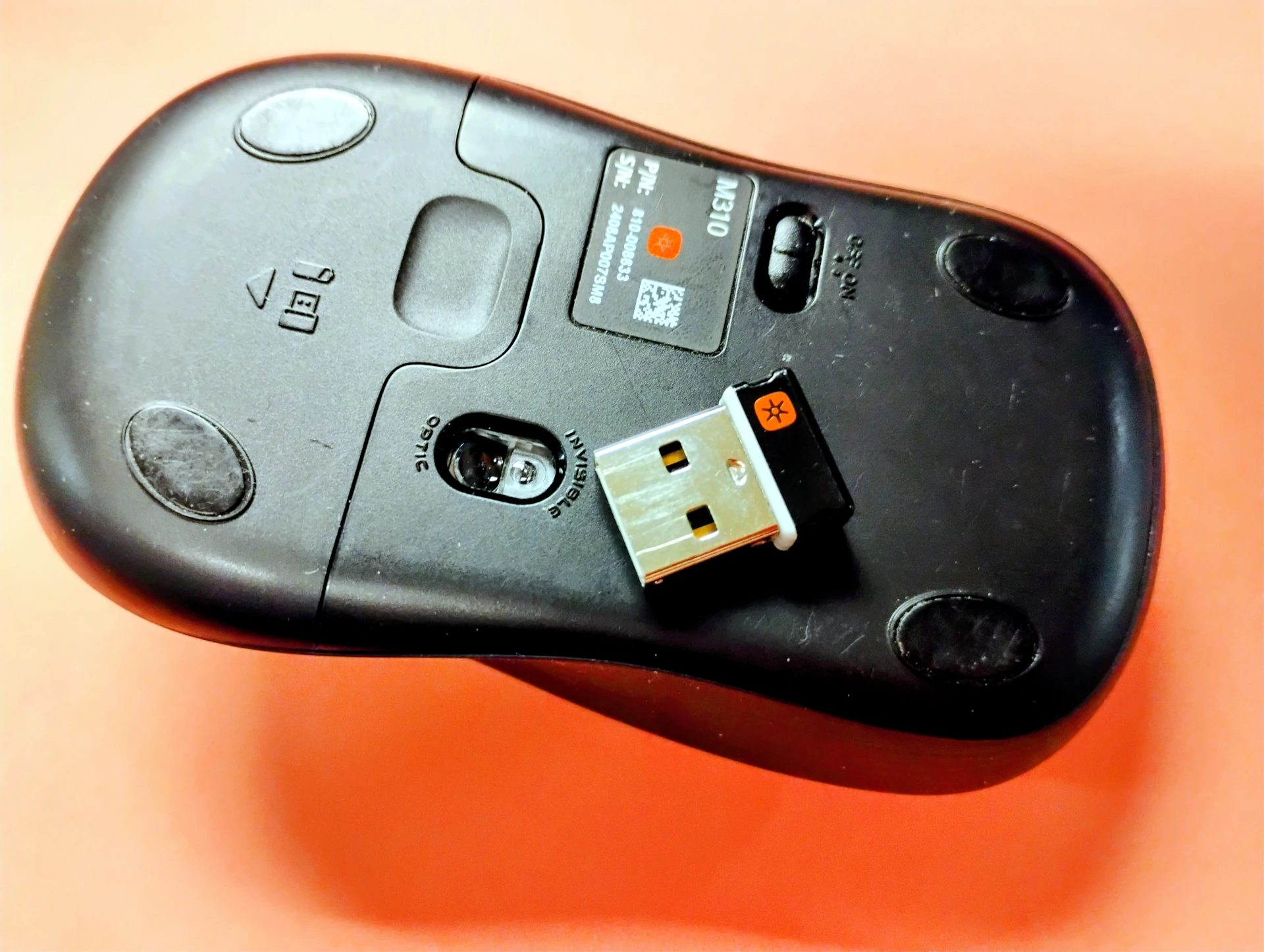 Fig 1. Logitech M310 wireless mouse and unifying receiver
Using Solaar
Using Solaar is simple:
With the mouse off
- Ensure the wireless mouse has a good battery but is switched off (test with multimeter or battery tester)
- Launch Solaar
- Plug the unifying receiver into the Linux machine
- Click the pair new device button
- Turn on the mouse
At this point the mouse will either pair (and you may see the Found a new device devicename and the wireless link is not encrypted message), or fail to pair.
Under what conditions do devices not pair
Not all Logitech devices are unifying devices. Some devices, such as the Logitech M170 wireless mouse, look a lot like unfying mice (the M325 for example), but are not unifying devices. If the mouse doesn’t have a unifying symbol don’t assume it’s a unifying device just because it’s made by Logitech. In the case of the M170 it needs it’s own specific receiver. The simplest way to tell whether a device is a unifying device or not is to turn it over and look for the unifying symbol.
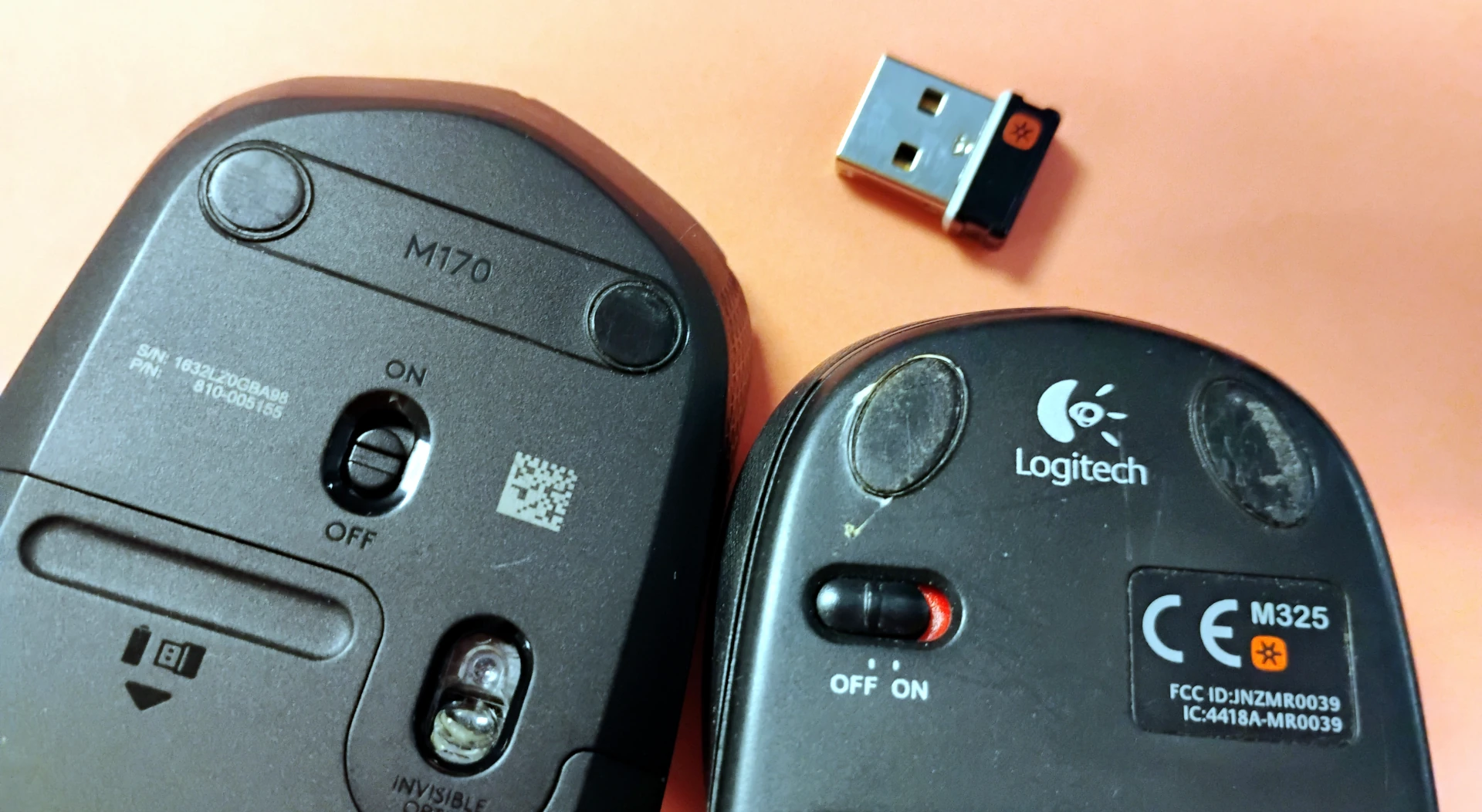 Fig 2. Logitech’s non-unifying M170 mouse vs the unifying M325 mouse
There are also newer Logitech Bolt devices that have a different symbol and use Bluetooth rather than the 2.4GHz radio frequency unifying devices rely on. These devices don’t mix and match with unifying devices.
A device also may not pair if the receiver reached the maximum amount of devices. Many of the receivers we tried only paired with up to 6 devices, but a few receivers appeared to do more.
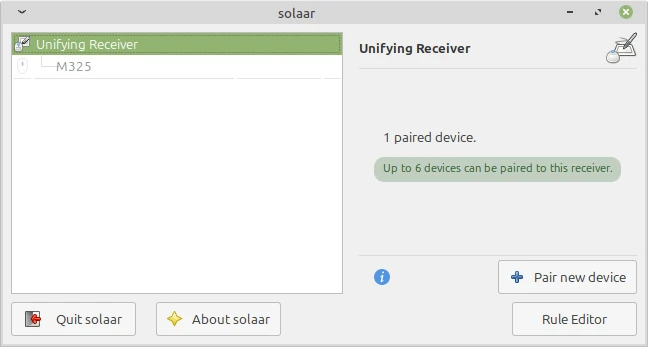 Fig 3. 1 device paired, up to 6 devices
Non-encrypted wireless mice are less of a concern than non-encrypted keyboards
Most Logitech mice are not encrypted over the radio frequency unfying connection. This isn’t normally much of a concern for most people since mice are used for movement, rather than passwords. That said, if you’re in a security-concious setting, another technology, like Logitech Bolt, or Bluetooth, might be a better option.
Conversely, most Logitech keyboards are encrypted, but not all, and that’s a big concern. Since keyboards are used to type passwords, and a non-encrypted connection could potentially be intercepted by someone with the right radio equipment. Having an encrypted connection is a must. If your Logitech unifying keyboard says the connection is not encrypted consider getting one that is.
There is an interesting markdown document concerning Logitech unifying devices on github: https://github.com/mame82/UnifyingVulnsDisclosureRepo/blob/master/logitech_vuln_summary.md
Updating the firmware on Logitech unifying devices
Some Logitech unifying devices’ firmware can be updated under Linux using the gnome-firmware (or if you prefer command-line fwupd) software package. Recent versions of Ubuntu and Xubuntu appear to have gnome-firmware installed with the default set of packages, but Linux Mint does not.
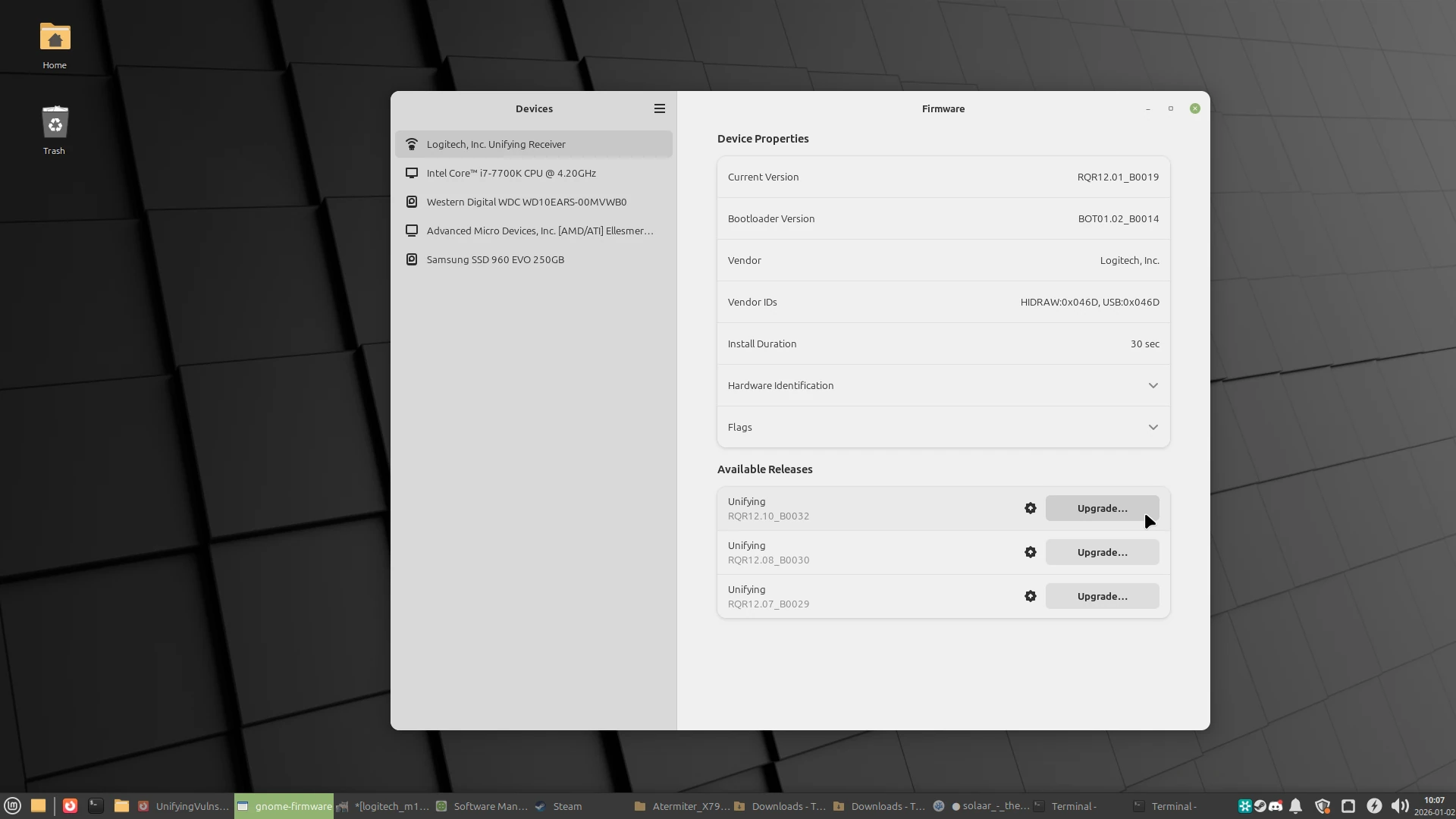 Fig 4. The gnome-firmware program for updating firmware on certain devices
The gnome-firmware software package can be installed in Linux Mint by opening a terminal (CTRL+ALT+T) and typing:
‘‘‘sudo apt update && sudo apt install gnome-firmware -y’’’
The first part of this command updates the list of software Linux Mint (or *buntu/Debian) knows about. The second part of the command (after the &&) installs the gnome-firmware package, and says “yes” to installing any necessary dependencies (extra software needed to run gnome-firmware). Once installed, just click on the menu, start to type the word firmware and click on the firmware program.
In the case of the unifying receiver I used for the screenshot, it initially had firmware that ended in B0019, and had 3 updates available. I started with the oldest update and updated each update progressively until the latest (B0032) update was installed.
Note: It is important NOT to pull out the receiver during a firmware update as doing so could brick the device
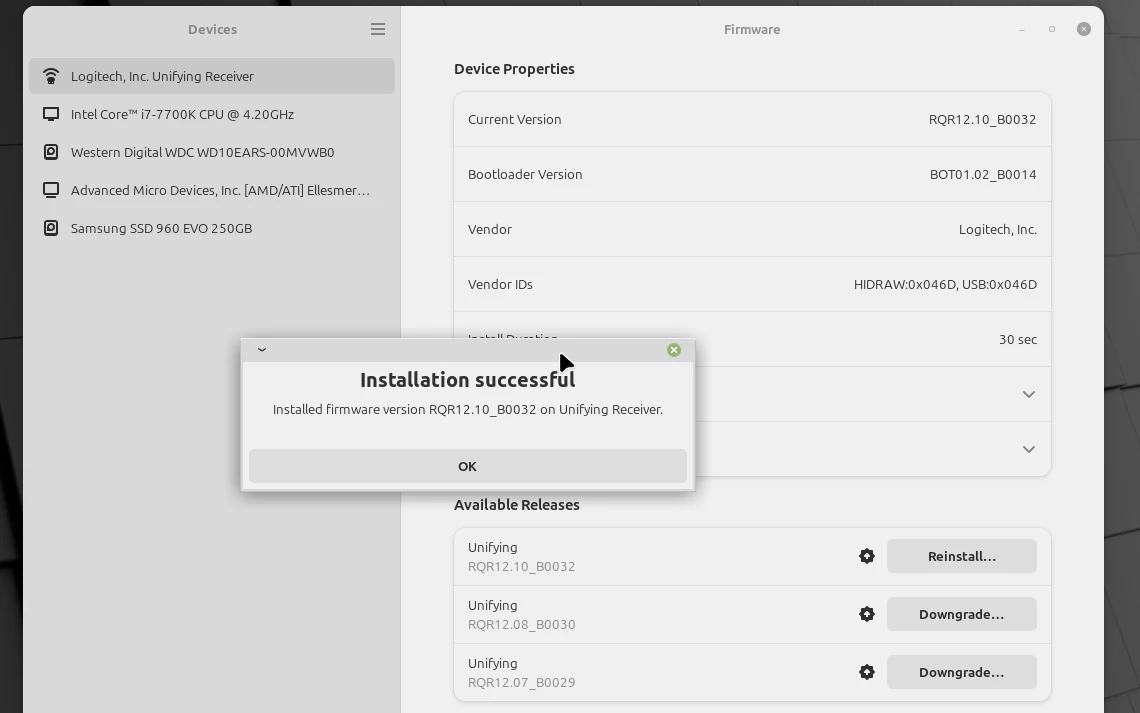 Fig 5. A successful update on the unifying firmware
Solaar and gnome-firmware are handy tools
Both solaar and gnome-firmware are handy if you have Logitech unifying devices. Solaar lets you pair devices, and gnome-firmware can sometimes be used to update the firmware on Logitech’s rf receivers.